> ## Documentation Index
> Fetch the complete documentation index at: https://wl.macaly.com/docs/llms.txt
> Use this file to discover all available pages before exploring further.
# Domains & Hosting
> Learn how to publish your site and use free or custom domains
Publishing makes your project available on the internet. Macaly handles hosting, deployment, and SSL for you, so you don’t need to configure servers or connect third-party services.
## **What is a domain?**
A domain is the address people type into their browser to visit your website, like [example.com](http://example.com).
Think of it as the public name of your site. When someone opens that address, their browser loads the content of your project. In Macaly, you don’t need to set this up upfront. Publishing your project automatically gives you a working domain so your site is immediately accessible.
## **Free Macaly subdomain**
Every published Macaly project goes live on a free Macaly subdomain, for example:
```
https://myproject.macaly.app
```
Older projects may have an address ending in `macaly-app.com`. Those keep working as before.
This lets you go online instantly. You can use this link to preview your site, share it with others, or launch without worrying about domains or hosting. You can keep using the Macaly subdomain or switch to a custom domain later without changing your project.
## **Custom domain**
A custom domain is a branded address like [example.com](http://example.com).
If you want your site to live on your own domain, you can connect a domain you already own from any registrar.
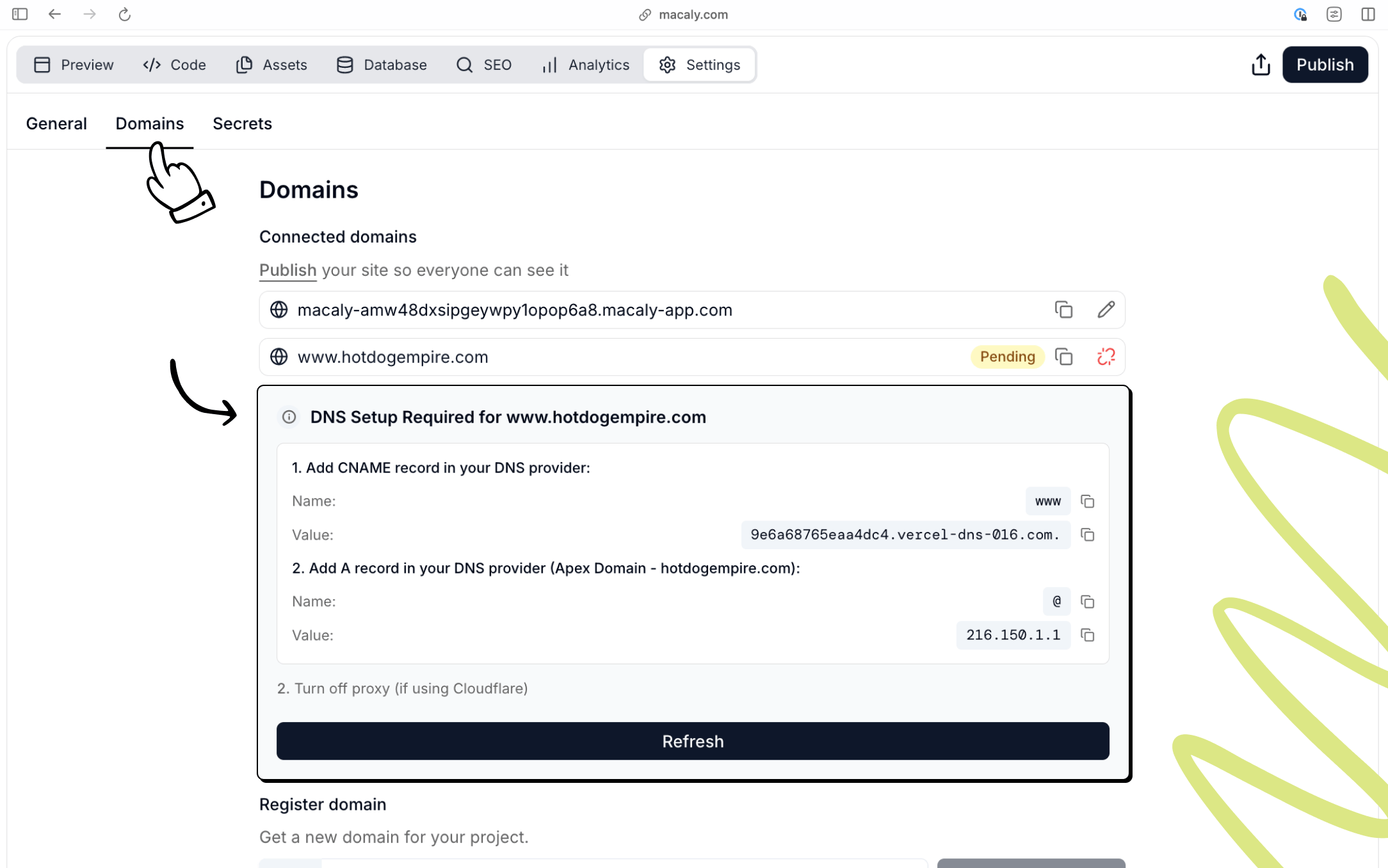
White-label platforms can configure domains in different ways. Your DNS provider may configure the required records automatically, your brand may activate the domain through a partner proxy, or the platform may show records for you to add manually. Follow the status and instructions shown in **Settings → Domains**.
## **How to Publish your Web or App**
Click **Publish** in the top-right corner of the editor. Macaly builds and deploys the latest version of your project automatically.
Once publishing finishes, your site is live on a free Macaly subdomain and ready to be shared or connected to a custom domain.
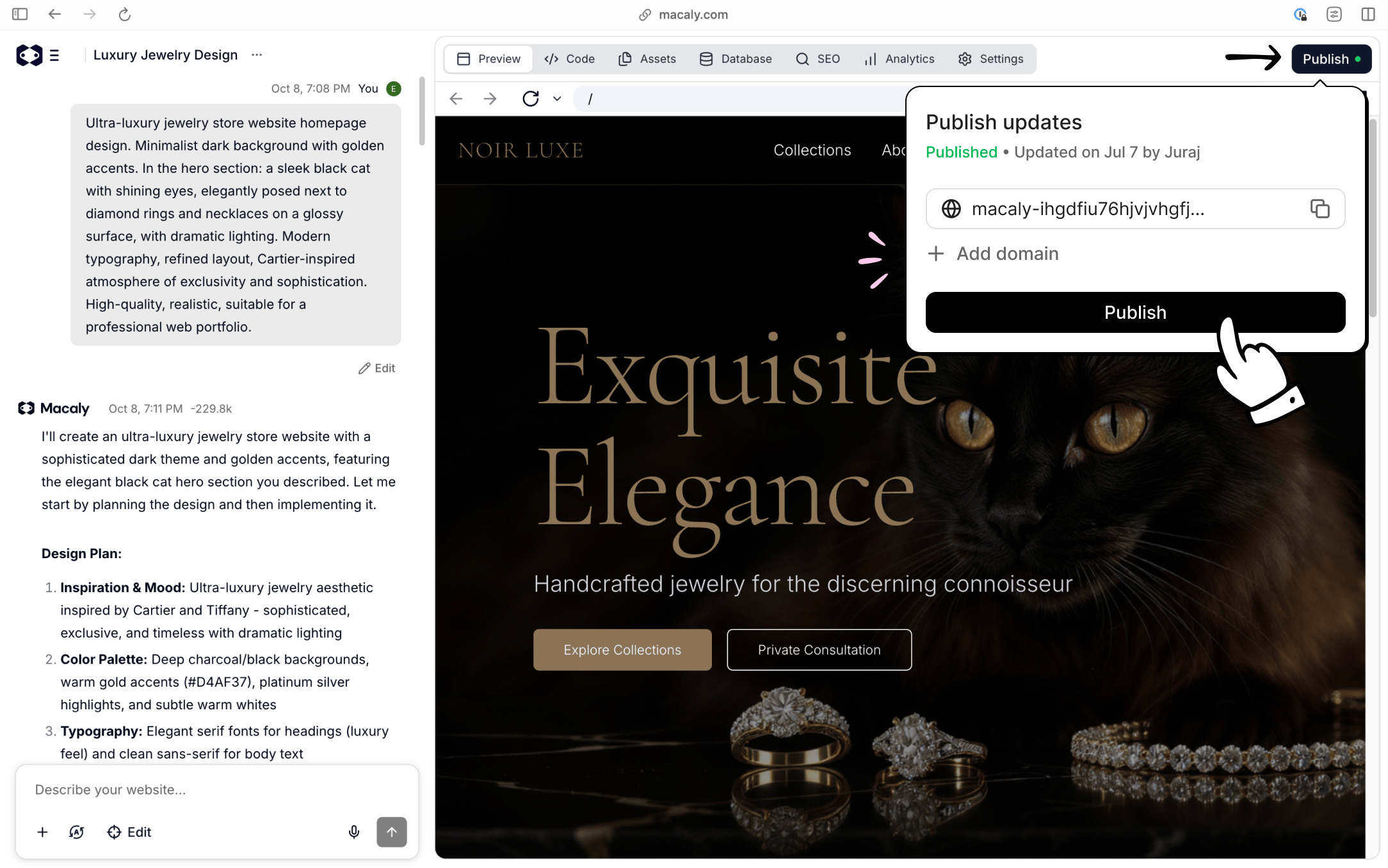 Open **Settings → Domains**, enter your domain, and click **Connect**.
* If the page says that DNS is being configured, wait a few minutes and refresh the status. Do not add records unless the platform asks you to.
* If the platform shows DNS records, copy those exact values into your domain provider's DNS settings and return to refresh the status.
* If your brand activates domains through a partner proxy, no manual DNS step appears in Macaly.
Open **Settings → Domains**, enter your domain, and click **Connect**.
* If the page says that DNS is being configured, wait a few minutes and refresh the status. Do not add records unless the platform asks you to.
* If the platform shows DNS records, copy those exact values into your domain provider's DNS settings and return to refresh the status.
* If your brand activates domains through a partner proxy, no manual DNS step appears in Macaly.
 ## **Hosting**
Macaly handles hosting and deployment for you. When you publish a project, it’s deployed automatically, served securely over HTTPS, and optimized for performance and SEO by default. You don’t need to manage servers, SSL certificates, or a separate hosting provider.
## **Frequently asked questions**
In your project, go to **Settings → Domains**, type your domain name, and click **Connect**. Then follow the status shown there. Some white-label setups configure DNS automatically or activate the domain through a partner proxy. If the platform shows DNS records, add those exact values at your registrar and return to click **Refresh**.
Add records only when **Settings → Domains** asks you to. Manual setups typically need two records:
* An **A record** for the root domain pointing to Macaly's IP address
* A **CNAME record** for `www` pointing to Macaly's hostname
The exact values are shown in **Settings → Domains** when you add your domain.
Check **Settings → Domains** first. If it shows a missing apex record, add the exact A record displayed there and remove conflicting A or AAAA records for the root domain. If your white-label provider manages DNS automatically or uses a partner proxy, refresh the status and contact your brand's support team instead of changing records blindly.
If the page says that DNS is being configured automatically, wait a few minutes and click **Refresh**. For manual setup, confirm that the records at your registrar exactly match what the platform shows and remove conflicting records. DNS propagation can take up to 24 hours. For partner-proxy setups, contact your brand's support team if the domain does not activate.
Macaly does not provide email hosting. For email on your custom domain (e.g. [info@yoursite.com](mailto:info@yoursite.com)), sign up with a third-party provider such as Google Workspace, Zoho, or Microsoft 365, and configure their MX records with your registrar. Once you have an email address, the Macaly agent can set up contact forms to send notifications to it.
This documentation is built and hosted on [Mintlify](https://mintlify.com), a developer documentation platform.
## **Hosting**
Macaly handles hosting and deployment for you. When you publish a project, it’s deployed automatically, served securely over HTTPS, and optimized for performance and SEO by default. You don’t need to manage servers, SSL certificates, or a separate hosting provider.
## **Frequently asked questions**
In your project, go to **Settings → Domains**, type your domain name, and click **Connect**. Then follow the status shown there. Some white-label setups configure DNS automatically or activate the domain through a partner proxy. If the platform shows DNS records, add those exact values at your registrar and return to click **Refresh**.
Add records only when **Settings → Domains** asks you to. Manual setups typically need two records:
* An **A record** for the root domain pointing to Macaly's IP address
* A **CNAME record** for `www` pointing to Macaly's hostname
The exact values are shown in **Settings → Domains** when you add your domain.
Check **Settings → Domains** first. If it shows a missing apex record, add the exact A record displayed there and remove conflicting A or AAAA records for the root domain. If your white-label provider manages DNS automatically or uses a partner proxy, refresh the status and contact your brand's support team instead of changing records blindly.
If the page says that DNS is being configured automatically, wait a few minutes and click **Refresh**. For manual setup, confirm that the records at your registrar exactly match what the platform shows and remove conflicting records. DNS propagation can take up to 24 hours. For partner-proxy setups, contact your brand's support team if the domain does not activate.
Macaly does not provide email hosting. For email on your custom domain (e.g. [info@yoursite.com](mailto:info@yoursite.com)), sign up with a third-party provider such as Google Workspace, Zoho, or Microsoft 365, and configure their MX records with your registrar. Once you have an email address, the Macaly agent can set up contact forms to send notifications to it.
This documentation is built and hosted on [Mintlify](https://mintlify.com), a developer documentation platform.