

Before you start
You don’t need a detailed plan. But a few minutes of thinking makes a big difference. Try to write down what you want to build in one clear sentence. If you can’t describe your idea in a sentence yet, it’s worth refining before you begin. If you’re not sure where to begin, these are great first projects:Landing page
Simple, focused, fast to build. Perfect for testing an idea.
Personal portfolio
A few pages about you, your work, and how to get in touch.
Business website
Home, about, services, contact. A solid starting structure.
Internal dashboard
A simple tool for your team to track tasks or display data.
- A short description of what your site is about (one sentence is enough)
- Your logo, if you have one
- Brand colors, or a reference website you like the look of
Don’t overthink it. Everything can be changed later, so your first version doesn’t need to be perfect.
Open your Macaly workspace
You access Macaly through your hosting provider’s control panel. Where exactly you find it depends on your provider, so check their documentation if you’re not sure. Once Macaly opens, you’ll see your workspace with the prompt input front and center. That’s where you’ll describe what you want to build.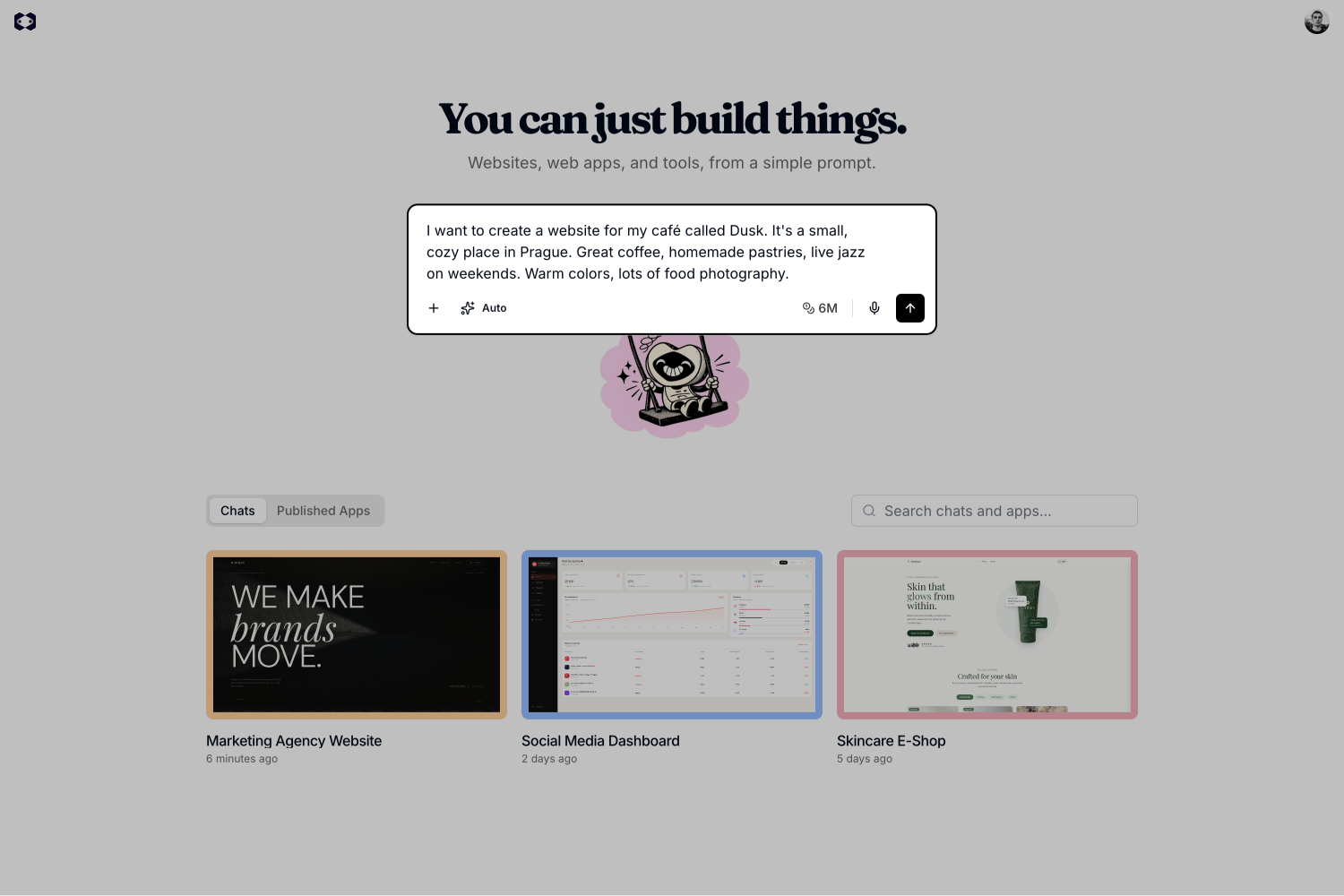
Describe what you want to build
Tell Macaly what you have in mind, the same way you’d explain it to a friend. Any language works, and you can skip the commands and technical terms. Just say what you want. If you have materials ready (a logo, brand guidelines, a PDF with content), attach them straight away. The more context Macaly has from the start, the better the first result. Start with something concrete:Answer follow-up questions
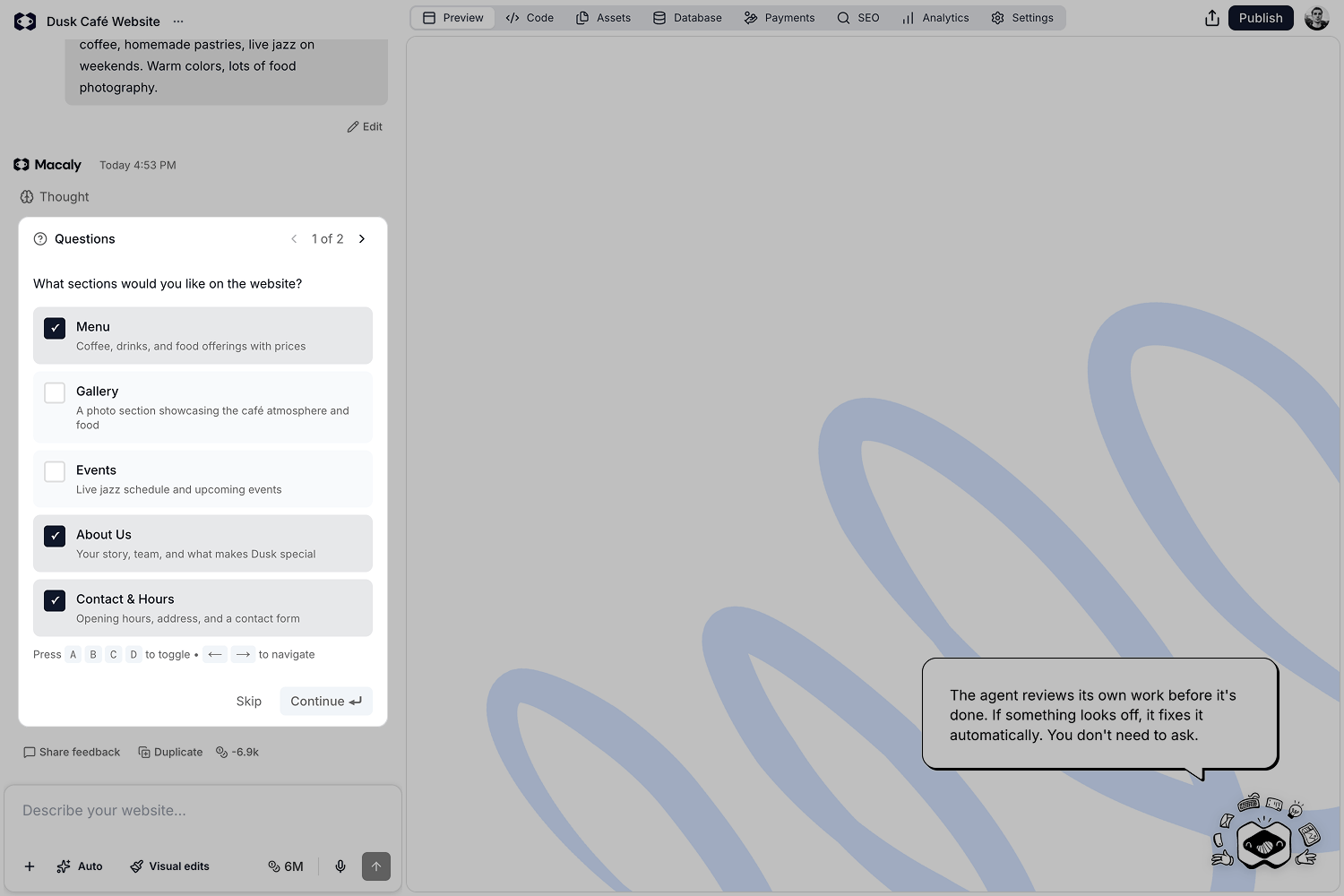
Macaly analyzes your prompt and may ask a few follow-up questions to better understand your requirements. These help tailor the application to your specific use case. Simply choose the option that best matches your project and click Continue. Macaly will guide you through any additional questions before it starts building.Complete the guided setup
Macaly continues with a few additional questions to personalize your application. Depending on your project, these may cover:- Number of products or services
- Design preferences
- Authentication and user accounts
- Payments and checkout
- Content and features
Choose your build strategy
Before Macaly starts building, you’ll be asked how carefully it should approach your project:- Move fast (recommended). Macaly builds as quickly as possible. Ideal for prototypes, MVPs, and rapid iteration.
- Check carefully. Macaly performs additional verification before making changes. This takes a little longer but can reduce issues in more complex applications.
Review the implementation plan
Before generating any code, Macaly creates a detailed implementation plan based on your prompt and answers. This is your chance to review the proposed structure, design, pages, and features up front. Take a few moments to review it:- If everything looks good, click Yes to start building.
- If you’d like changes, select Not yet and add instructions. Macaly updates the plan until you’re happy with it.
Review your first application
The first version can take up to a few minutes, and you’ll see updates in the chat as the agent works. Once it’s done, you’ll see a summary of everything it created, along with a live preview on the right where you can explore your new application right away. Use the device toggle above the preview to instantly see how your site looks on mobile, tablet, and desktop. Navigate through the pages, test the user experience, and review the overall design.
Review and refine
This first version is your starting point, not the finished product. Compare it to your original idea: does the layout match your vision? Is the content accurate? Do the colors, typography, and branding reflect the experience you want to create? It won’t be perfect on the first try, and that’s completely normal. Keep refining by sending follow-up messages in the chat. Each one builds on what’s already there, so you never start from scratch. You can also use the to make precise changes directly on the page. Example follow-up prompts:- Better results start with context. Share a reference site, upload your logo, or explain who the site is for. The more Macaly knows, the better the output.
- Describe the result, not the steps. Focus on what you want it to look or feel like. Macaly figures out the how.
- Send one request at a time. Focused messages get better results than long lists. If you have several changes in mind, send them one by one and Macaly will work through them in order.
- Ask before you build. Not sure if something is possible? Just ask. Macaly can walk you through the options before any work begins.
- Say what’s off, not just that it’s wrong. “The font feels too formal” gives Macaly something concrete to work with. “Try again” doesn’t.
- Ask the agent to undo it. Describe what changed and say you want it reverted. Works best when just one thing went wrong.
- Restore a previous version. If several things went sideways at once, restoring is faster than undoing step by step. Each agent response has a “Restore this version” button. Click it to roll back to that point.
- Edit a previous prompt. Go back to any earlier message and edit it. Macaly rewinds the project to that moment and rebuilds it from your updated prompt.
- Start from a safe copy. Before making big changes, click “Duplicate” under any message. That way you always have a fallback to return to.
Publish your application
Once you’re happy with your application, click Publish in the top-right corner of the editor. Macaly automatically builds and deploys the latest version, and your application becomes immediately available on a free Macaly subdomain so you can share it right away. Later, you can connect your own custom domain to give it a branded web address.Good to know
Macaly doesn’t just publish your application. It also provides much of what you need to run it in production, without extra setup.- Search engine optimization (SEO). Every application is optimized for search engines by default. Pages are rendered so Google, Bing, and other search engines can easily crawl, index, and understand them. No additional configuration required.
- Built-in analytics. Analytics start collecting automatically as soon as your application is published. The dashboard provides insights into page views, visits, unique visitors, average visit duration, and bounce rate, so you don’t have to connect a third-party service.
- Built-in database. Every project includes a fully managed database. You don’t need to provision it or manage any credentials. View, search, filter, and manage your data directly within Macaly through an intuitive interface.
- GitHub integration. Connect your project to GitHub to automatically back up your source code in a private repository. Push updates whenever you publish, and restore from a backup if needed, so you keep full ownership of your application’s code.